
Download (official site / trial available)
DiskDigger is a utility designed to undelete and recover files you thought were gone whether from a hard drive, a memory card, or a USB stick. If you accidentally removed photos or documents, reformatted a camera card, or want to inspect an old flash drive for lost files, DiskDigger aims to help with those recoveries.
DiskDigger’s full version supports recovery from most media types readable by a computer: internal and external hard drives, USB flash drives, memory cards, CDs, DVDs, and even older floppy disks. The program provides two scanning modes you can choose between each time you run a scan, giving you flexibility depending on how deep you need to search. DiskDigger is compatible with a wide range of Windows releases and also has builds for Linux.
You can also try other recovery tools such as Stellar Data Recovery Professional if you want to compare features and find what fits your needs best.
DiskDigger Key Features:
- Restore files from FAT (FAT12, FAT16, FAT32), NTFS, and exFAT partitions.
- Recover virtually any file type.
- Filter recoverable items by filename and file size for quicker browsing.
- Sort found files by name, size, date, or directory to make selection easier.
- Scan (carve) entire disks to look for traces of specific file formats.
- Supported file categories include: photos and images, office documents, audio and video, compressed archives, and miscellaneous file types.
- Works on Windows 11, Windows 10, Windows 8/8.1, Windows 7, Windows Vista, and Windows XP both 32-bit and 64-bit editions. Also available for Linux.
- View recoverable files as a detailed list or as thumbnail previews.
- Thumbnails provide quick previews of images, album art from MP3/WMA files, and icons for executable files.
- Selecting a file shows a fuller preview when possible: images will display (with pan and zoom), documents show a text-only preview, and certain audio files may be playable directly in the app.
- Previews for JPG and TIFF files include EXIF information where available (camera model, date taken, exposure settings, etc.).
- MP3 previews display ID3 metadata such as artist, album, and genre.
- ZIP previews list the archive’s contents so you can inspect what’s inside before restoring.
- Able to scan virtual disk image files.
- When doing a deep scan, you can start from a particular location on the disk to narrow the search.
- Optional hex preview shows the first 4 KB of a file when previewing, useful for advanced users who want to inspect raw bytes.
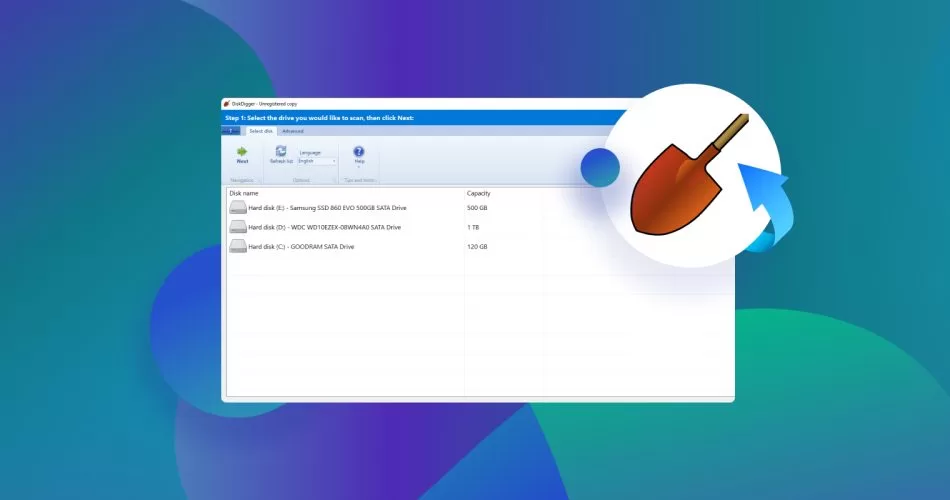
System Requirements
- Operating System: Windows XP/Vista/7/8/8.1/10/11.
- Memory (RAM): Minimum 128 MB (512 MB recommended).
- Hard Disk Space: Around 20 MB free space required for the application.
- Processor: Intel Pentium 4 or newer.
- Permissions: Administrator rights needed for full access to drives.
Important Legal & Safe Notes
- Always download recovery software from the official developer website or an authorized distributor to avoid altered or unsafe builds.
- Avoid installing recovery tools on the same drive from which you want to recover files installing may overwrite the very data you need. Instead, run the recovery from a different drive or boot from removable media when possible.
- If you need advanced recovery or commercial support, consider purchasing a legitimate license from the official vendor. Licensed versions often include extra features and customer support that free builds don’t offer.
- For comparisons, reputable alternatives include tools like Recuva, PhotoRec, EaseUS Data Recovery Wizard, and Stellar Data Recovery; each has different strengths depending on your scenario.
How to Get DiskDigger Safely
- Visit the official DiskDigger website or an authorized software store.
- Download the official installer or a free/trial build if available.
- Follow the official documentation for installation and usage.
- If you decide you need the extra features of a paid edition, buy a license directly from the vendor so you get updates and support.
Quick Recovery Tips
- Stop using the affected drive immediately after noticing data loss continued writes can overwrite recoverable files.
- If possible, create a full image (clone) of the affected disk and run recovery operations on the image instead of the original media.
- Use filters and file-type scanning to speed up results when looking for specific formats (for example, filter for JPG/PNG when searching for photos).
- Back up recovered files to a different physical drive.